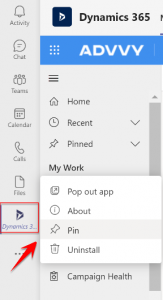
The following steps shows users how to pin Advvy into Microsoft Teams. This is a way for users to make Advvy even more accessible. We recommend using Advvy in Teams for basic functionalities, such as changing task status or observing data.
To pin Advvy in Teams, please follow these steps:
- Enter into your Microsoft Teams.
- Click “Apps” in the bottom left corner.

- Use the Search Bar in the top left corner to search for “Dynamics 365”.
- Click Dynamics 365.
- Click Open.
- Click the “Settings” tab.
- Choose the Environment via the drop-down menu.
- Choose the Dynamics 365 app via the drop-down menu, this is common “Advvy Agency”.
Note: If you are unsure of what Environment and Dynamics 365 app to choose, please reach out to your customer success manager.
- Click Save Changes.
- Click back to the “Dashboard” Tab and Advvy will load if set up correctly.
- Click the Dynamics 365 icon and select pin to pin Advvy to teams.