Connecting to a Campaign
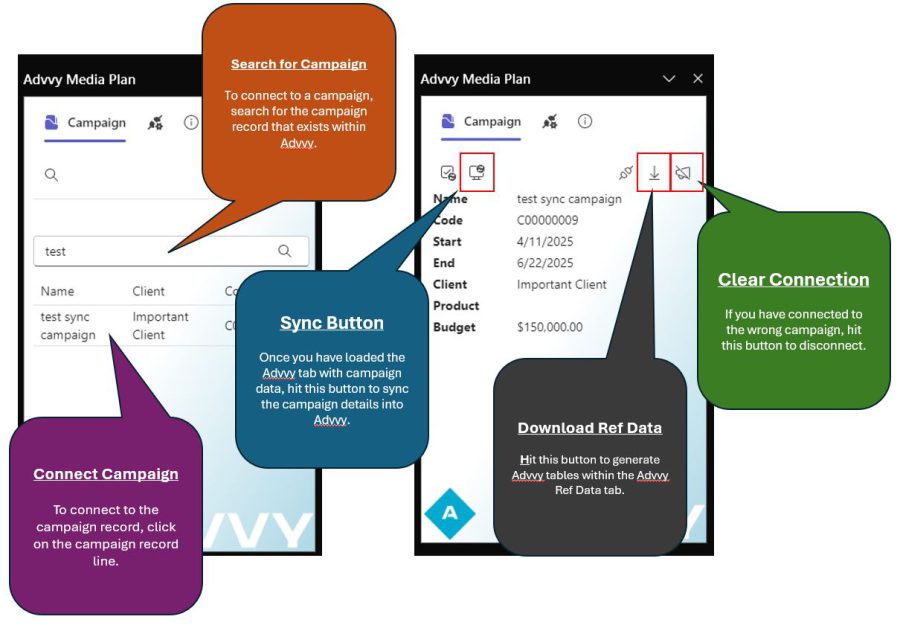
- Navigate to the Advvy Media Plan pane, in the search box enter the first few characters of the campaign name and press ENTER to list any existing Advvy campaigns.
- Highlight the campaign – a tick will appear near the name
- Click on the [Campaign] Line. Once you see the Campaign details appear this indicates that the plan is now linked to the campaign.
It’s ready for syncing!
If you have selected the wrong campaign, that’s OK, simply click on the [Slashed Loudspeaker] button to disconnect the plan from the campaign.
Then repeat the steps above to search and select the desired campaign.
When the Excel file is idle, the campaign connection must be re-established. To refresh the connection to Advvy, hit the [connection cables] found next to the download [underlined down arrow] button.
Once this plan is linked to a campaign in Advvy, when you save and close this file, the link will be maintained the next time you open the plan.
You only need to select the campaign record once.
Campaign Not Showing in Search
When searching for a campaign, sometimes a campaign might not show up.
To troubleshoot this issue.
- Ensure that the campaign has been created and saved in the Advvy platform. (for more info on how to create a campaign in Advvy – click here)
- Check that the environment you are connected to is the same environment that the campaign exists in (for more info on how to connect to an environment – click here)
For more Campaign related information – please check out our Campaign Record page – click here