How does Advvy work with Media Plans
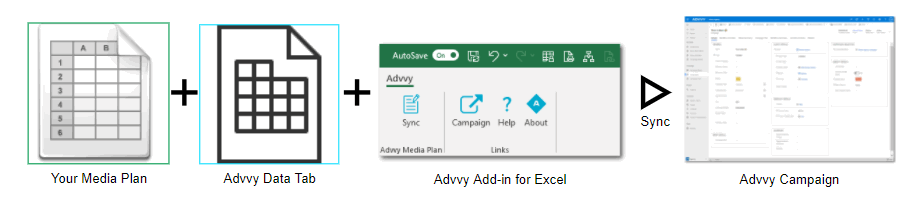
Your Media Plan is the source of truth for your Client Campaigns.
Once we combine your Media Plan with our Advvy Data tab the plan is ready to be synced to Advvy using the Advvy Add-in for Excel.
All you need is:
- A Campaign to be created in Advvy
- A Media Plan configured for use with Advvy Data tab
- Link the Media Plan to the Advvy Campaign Record
- Sync your plan data to the Advvy Campaign
For this help guide, we’ll focus on Syncing a campaign to Advvy.
Before we do this, please ensure that the 1-3 (listed above) has all been completed.
SYNCING & VALIDATION
Sync your Media Plan to your Advvy Campaign
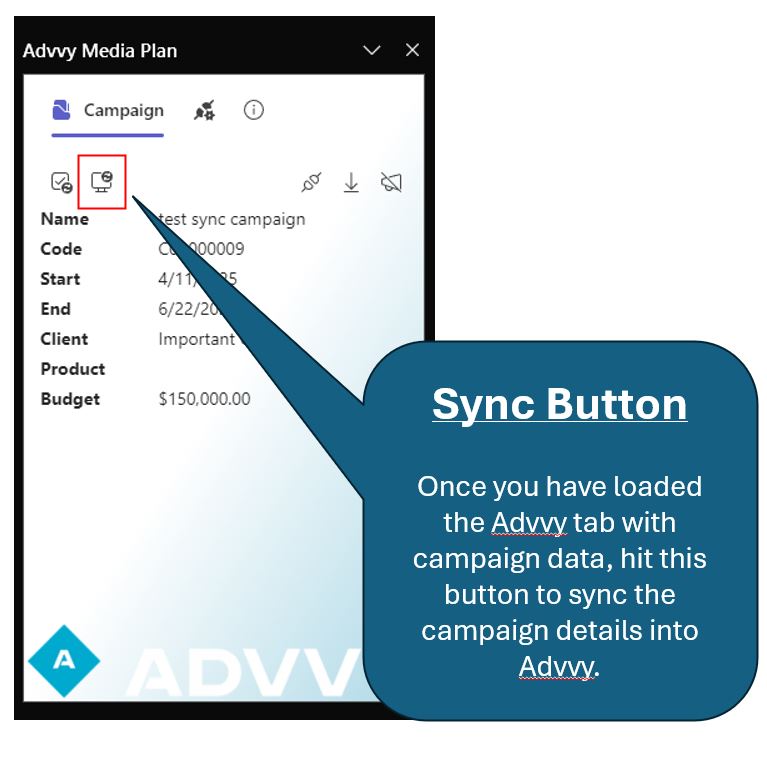
- On the Advvy Add-in – Click on SYNC to open the Media Plan side-panel
- Refresh (or press Control + Alt + F5) the campaign’s latest changes to update our Advvy Data tab’s flighting table. (This must be done every time if there are changes to your plan – if the plan says refresh data)
- If no errors are found, Select ‘Sync’ – it should take up to a minute to pick up all of your data and return a completed message.
- Once the sync is complete you may continue to work on your media plan.
Note: Once your data has been picked up by the sync process, depending on the volume of flightings, the data will take time to process in the cloud.
If a subsequent “sync” is actioned before the previous sync has completed processing, a message will display indicating another sync is in progress.
Wait until that sync is complete before attempting to sync your latest updates again.
Viewing your Synced Media Plan details in Advvy
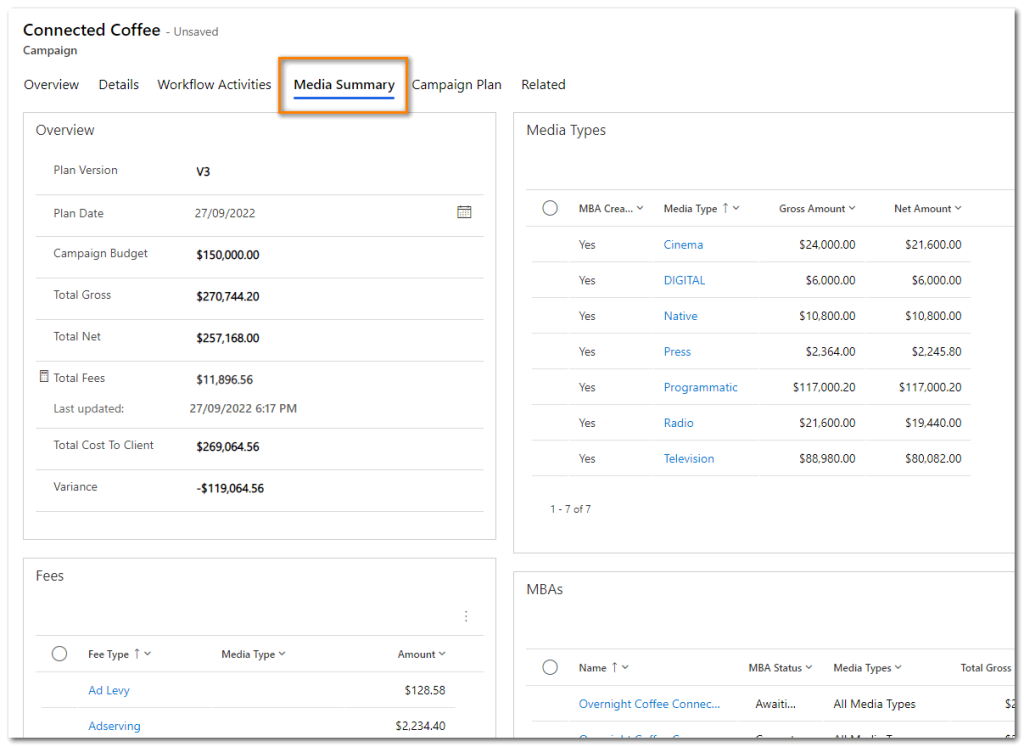
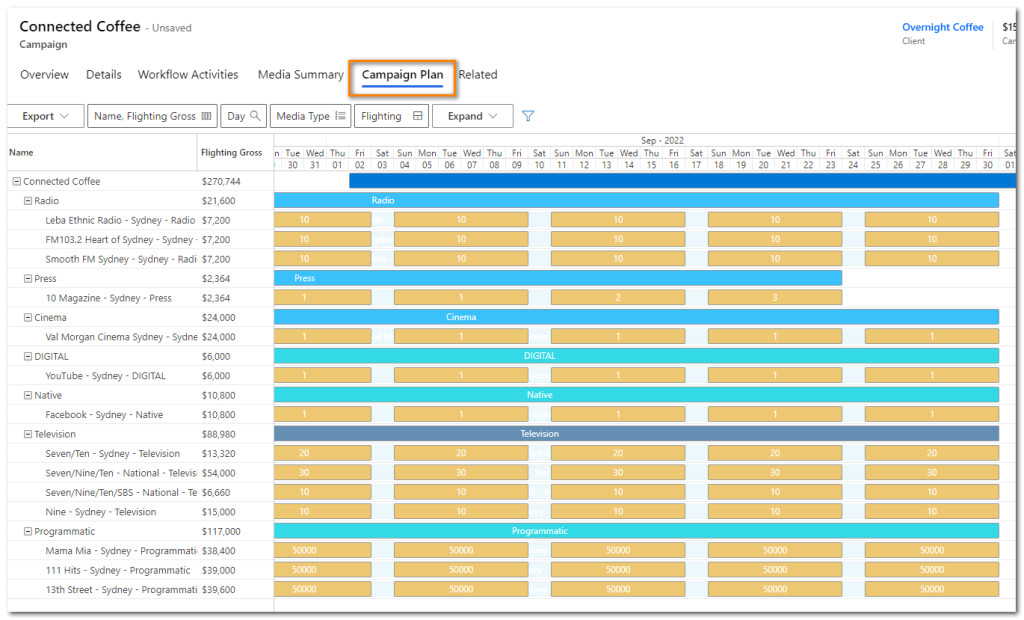
Once your Media plan has been synced to Advvy, you will see the data reflected in a number of places:
- In the Campaign record on the Media Summary, Campaign Plan and Related Campaign Flightings tabs
- In the Client record under Campaign Plan
- In the Campaign Plan Dashboard on the main menu
- In the Client Portal for Client visibility (real-time view)
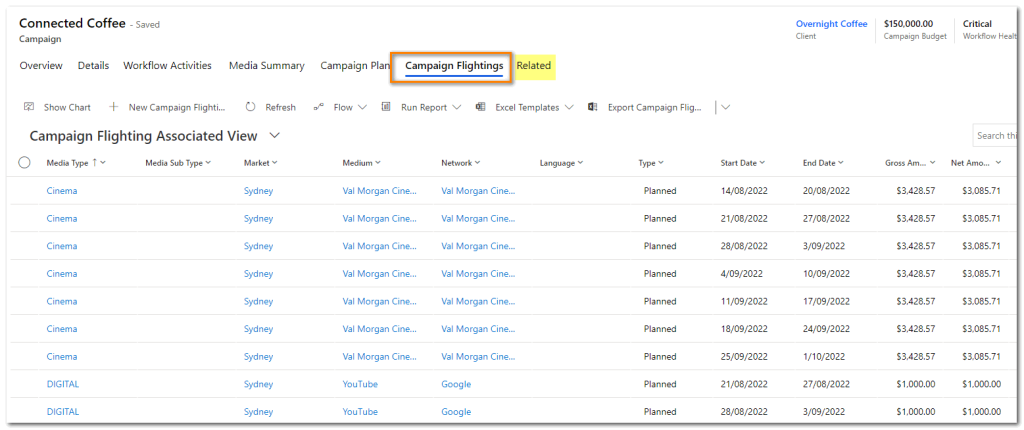
Troubleshooting Media Plan Errors
Some common errors have been outlined below. If you experience issues with your Media Plans, send them through to the Advvy Support team for further investigation.
Advvy Add-in Sync displays a blank pane
- Check if your filename contains special characters such as apostrophes or quotes – remove these from the filename and try again.
Advvy Add-in Sync says unauthorised user when trying to search a campaign
- Check that you are logged in to Microsoft Office 365 – your name should appear in the Excel title bar at the top right. Try signing out and signing back in to Office.
- Check that the correct URL for Advvy is on the Server tab.
The Sync looks ok but I cannot see the plan data in the Campaign
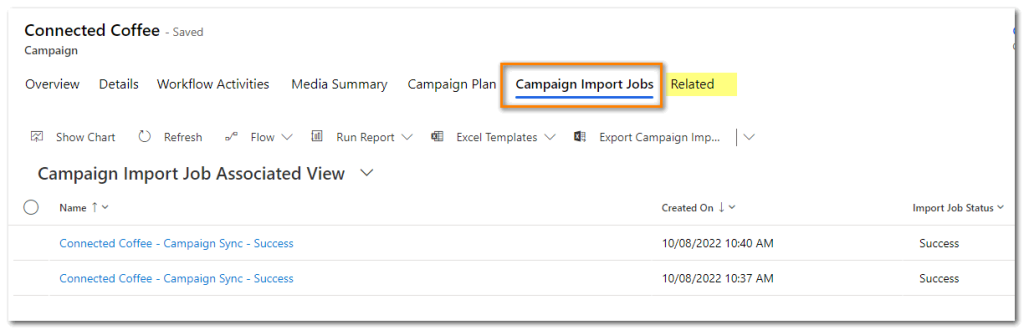
- Check the Campaign Import Job tab to ensure the sync was successful. If there are errors, the job file will point to which table of data could be the cause.
Sometimes, all it needs is a re-sync to work.
Thats it! You’re now ready to explore Advvy and all it has to offer.