Client Team Management
The importance of client team setup and management
It’s important for users to be set up correctly within Advvy to ensure they’ll be able to view their campaigns and assign tasks to team members. For this to be possible, the user, must be part of the same client team as the team member they want to assign tasks to. This will ensure both users can see the same campaigns. The user must also share a media workflow role with a role in the workflow you’re managing for them to be available for task assignment.
Reviewing Client Teams in Advvy
After creating a new Client within Advvy a Client Team is automatically created. To manage users of a client team, follow the steps below.
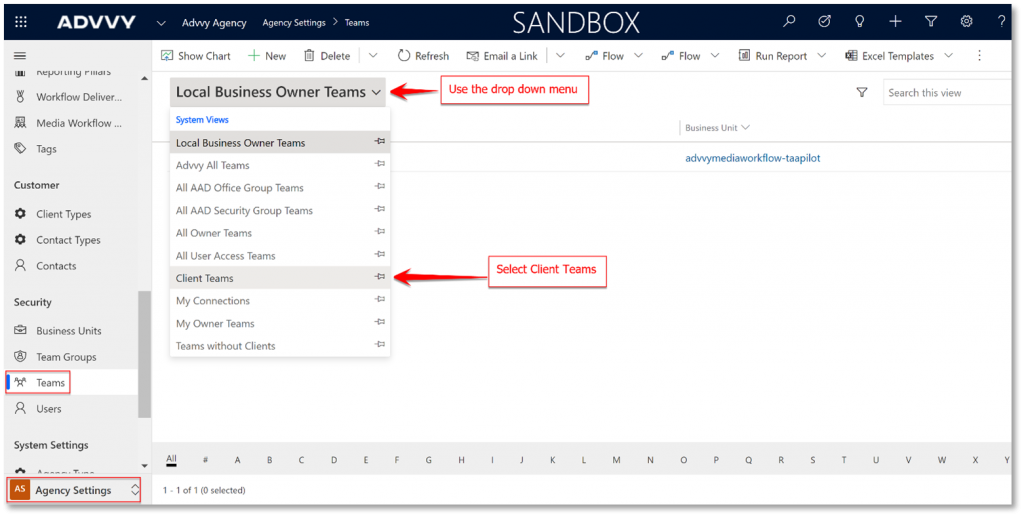
- Go to the Agency Settings section of Advvy by using the bottom left drop-down menu.
- Navigate to Teams in the Security section
- Use the drop-down menu to select “Client Teams”
- From here you’ll find a list of Client Teams in Advvy, select the team you want to manage.
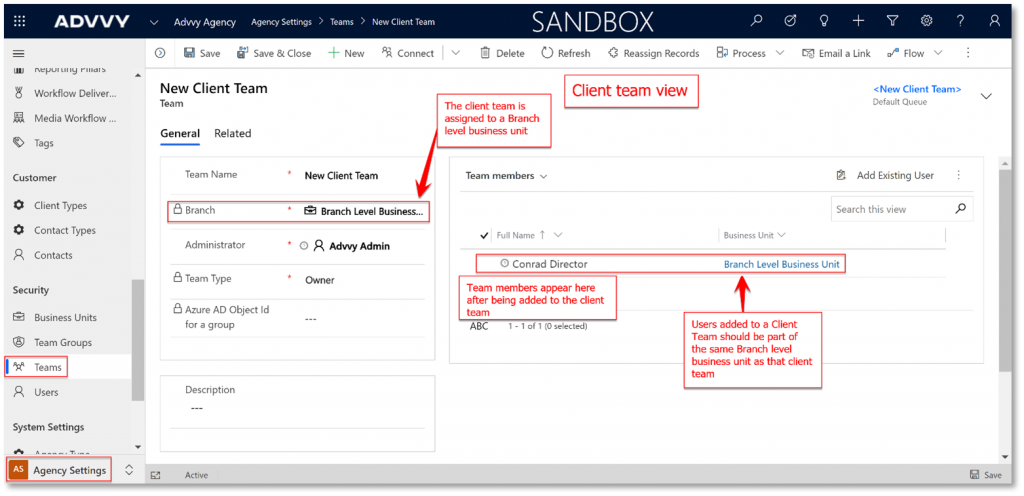
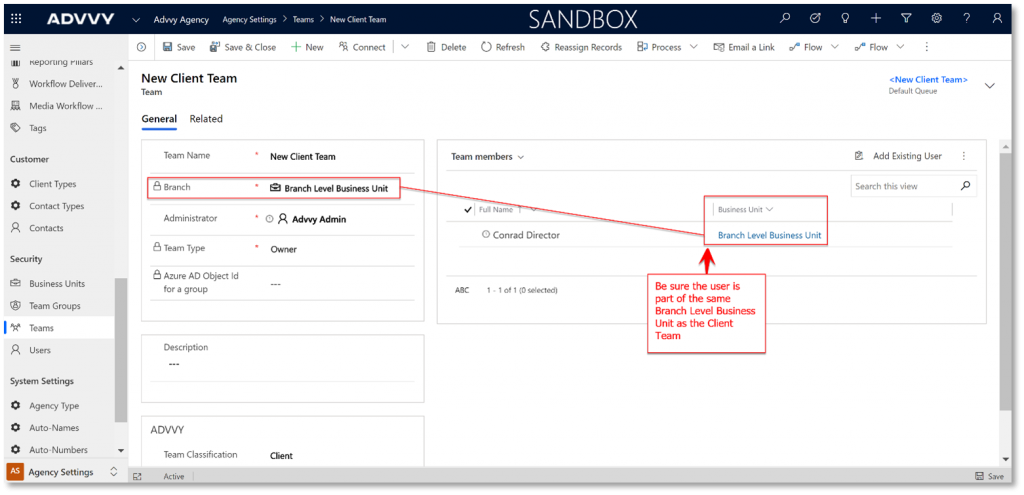
From inside the Client Team Record, users can review key information related to that Client Team including the Name, Branch (which is locked for editing because it’s associated with the Client record), Administrator (the user who created the Client record associated with the team) and Team Members.
Adding Users to a Client Team
Users can also add team members to client teams from within the Client Team Record by following the steps below.
- Go to the Agency Settings section of Advvy by using the bottom left drop-down menu.
- Navigate to Teams in the Security section
- Use the drop-down menu to select “Client Teams”
- Click on the client team you want to manage
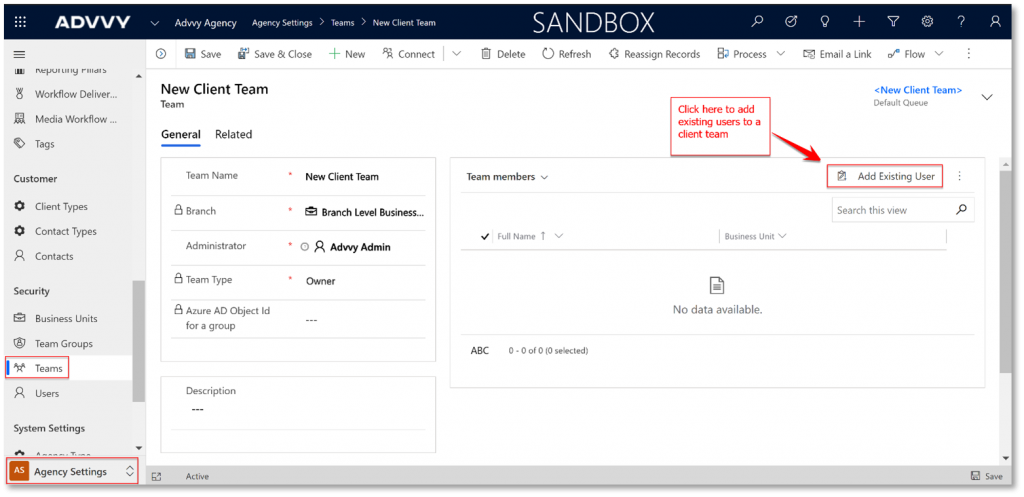
- Once inside the client team record, click add existing user
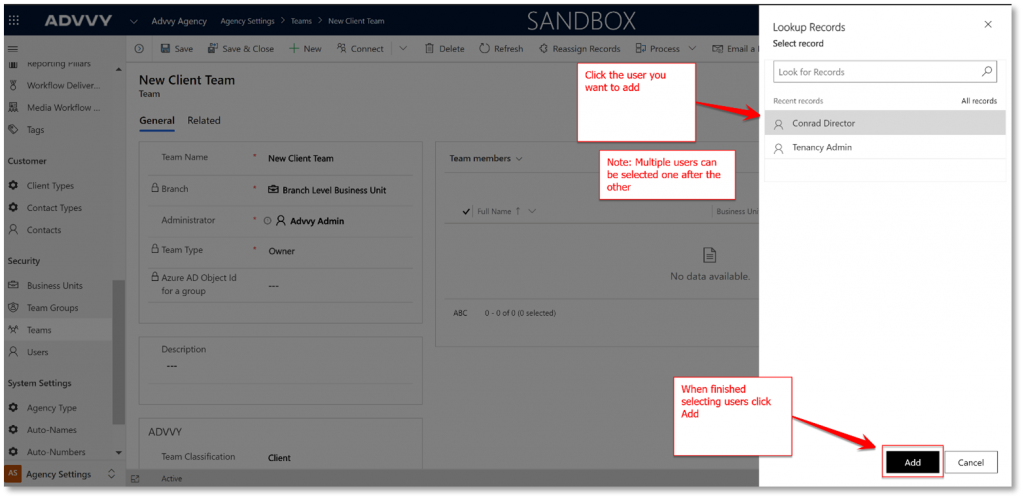
- Search for the name of the user you want to add and click their name
- Repeat step 6 to add multiple users to the Client Team
- Once finished selecting users, Click Add
- Be sure the users you select are part of the same Branch business unit as the Client Team, if they are not, you can edit this in their user profile.
Please see our help guide for more information on media workflow roles in Advvy.
Previous article: 5 Set up New Users Next article: 7 Set up Excel Add-in for Media Plans