Highlighted Features in This Release
- NEW Campaigns with a bespoke Workflow
- NEW Save a bespoke Workflow as a template
- NEW Client Rate Card
- UPDATED Advvy Add-in with NEW Advvy Reference Tab & Client Rate Card download
- UPDATED Advvy Sync: Channel Totals vs Flighting Totals
- UPDATED Workflow Activity Kanban board – Features
- UPDATED Client Portal Help guide
NEW Create a Campaign with a bespoke Workflow
Previously campaigns needed to have a minimum set of criteria completed before it was created such as a Campaign Name, a Start and end date, a Client and a Workflow. As such, a workflow needed to be already predefined as a template in Advvy to allow the campaign to proceed.
This mandatory workflow is great for client teams with a pre-set process that must be followed, however it is restrictive for client teams who require a more adhoc approach to their campaign processes creation.
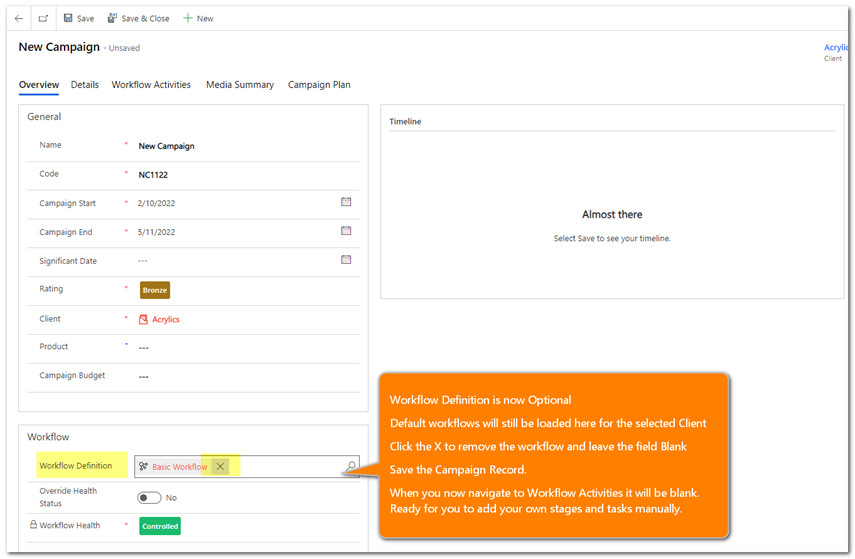
This new approach now allows for a Campaign to be created without a workflow (note default workflows will still be available for selection).
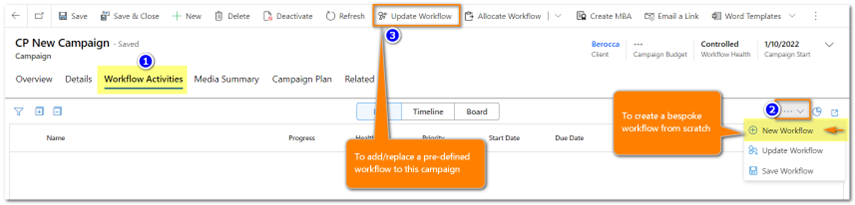
At a future time, the campaign record can have a workflow added in 2 ways:
1) Update the Workflow using the ribbon option to add a pre-defined workflow (Existing function in Advvy)
2) Create a bespoke Workflow directly in the Campaign record from scratch using the Workflow Activities UI.
How it works:
- Create a New Campaign.
- Once you have selected the client, any default workflow will be displayed. [if you save the new campaign record at this step the predefined workflow will be applied].
- Click the ‘x’ to remove the default workflow from the Workflow Definition field. [if you save the new campaign record at this step no workflow will be set for the campaign].
Rules:
- The Campaign without a workflow will have no definition set for the workflow record.
- If you create a NEW Workflow using the Workflow UI button, the name of the workflow will become the Campaign Name – it will be automatically applied.
- If you opt to update workflow from the ribbon, then the campaign will be locked to the selected pre-defined workflow. You can still modify the workflow, but you cannot create one from scratch.
To build a workflow, the same method applies here as it does in the Advvy setting method, or when modifying an existing workflow – create one or more stages first, then add one or more tasks underneath the stage.
New Workflow
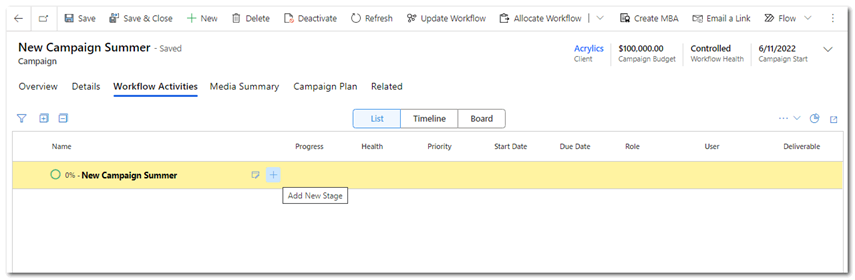
When you select to create a New Workflow, the Name of the campaign will appear in the view list. This is the top level setting for the Workflow.
To add a stage click the + button on the Campaign Name – this creates the stage underneath (level 2).
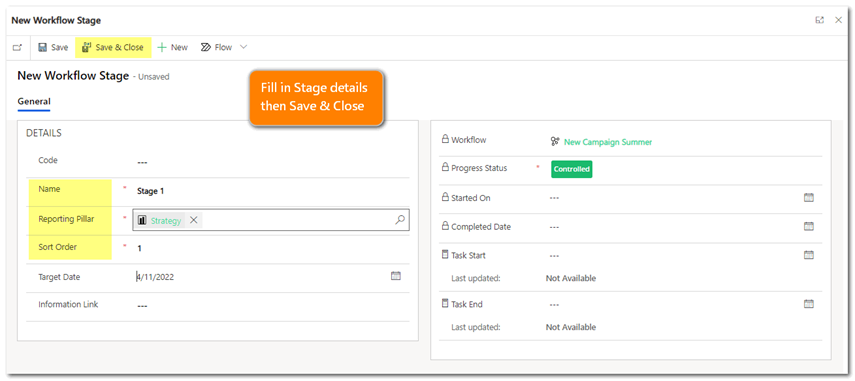
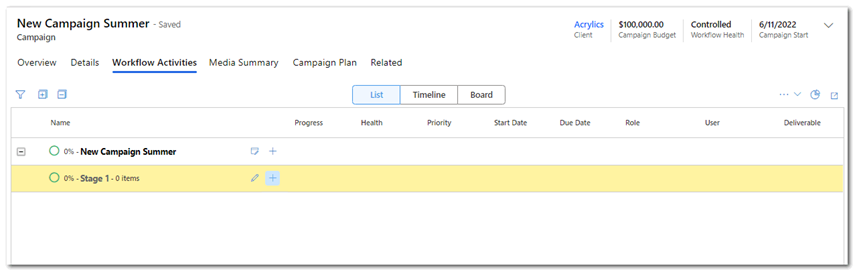
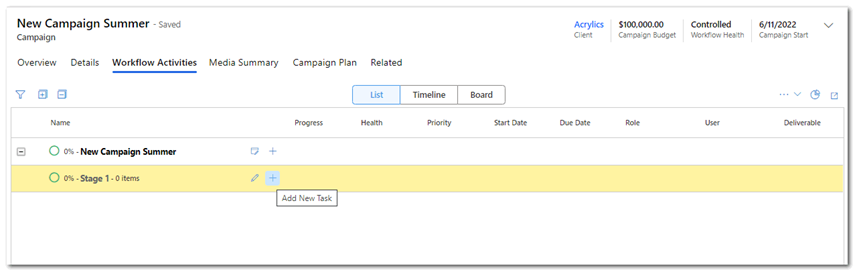
To add a task click the + button on the Stage name – this create the task underneath (level 3)
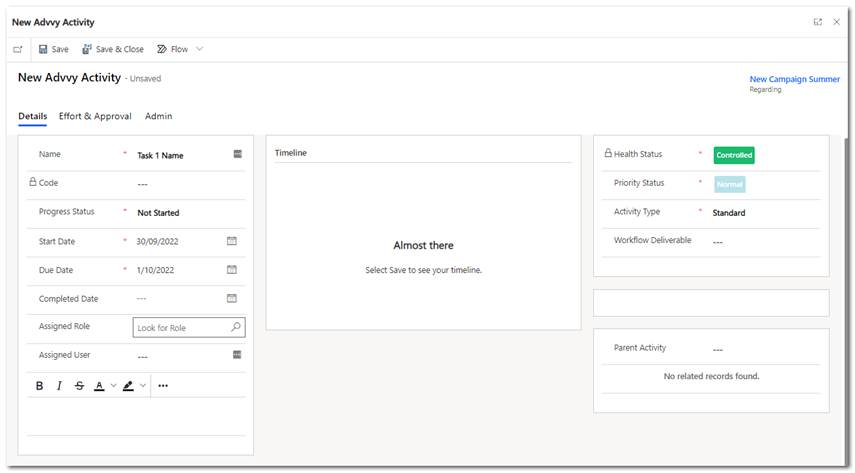
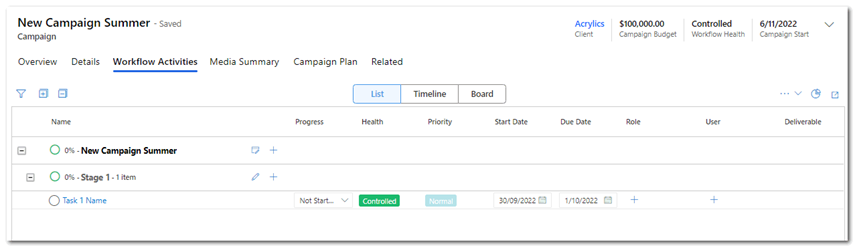
Once a Campaign workflow is created from scratch, it can be saved as a NEW workflow template that can be added to the existing suite of pre-defined workflows. ( See feature below for more about saving workflows)
NEW Save a workflow as a Template
With the introduction of a new feature “New Workflow”, where you can create a bespoke workflow process from scratch for a campaign, there may be occasions where you want to re-use this workflow in another campaign. This essentially means, you’d like to save the current workflow in the “Workflow definitions” as a template to be used again and again.
The Save Workflow function is available to do this.
How it works:
- Once you have created or edited your campaign workflow…
- Select the Workflow UI and choose [Save Workflow].
- Enter a name for the workflow and click [Save].
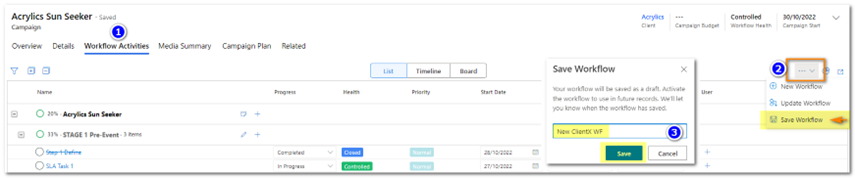
The Workflow will be saved as a “Draft”, meaning it will need to be activated to use it for a new campaign.
Follow this link to learn how to activate a draft workflow: https://www.advvy.help/advvykb/how-to-activate-workflow/
NEW Client Rate Card tab & NEW Advvy Reference Tab
The Problem: “Our agency has over 50 clients that have their own bespoke rates built into the template. The template is identical to all others except for this information. This means I need to manage 50 bespoke media plans for each client. If I need to update an Agency rate across all clients, it means I have to update over 50 client media plan templates. This takes significant time and testing- where can rates be centralised?”
The Solution: Advvy has heeded the call and has begun the process of introducing Rate Cards into the Client entity. Along with this Rate Card update in the Agency platform, the Advvy Add-in has been updated to download these rate card values into any connected media plan template. This means that an Agency could maintain one Master media plan template that will bring down individual client rates into the Advvy Reference tab.
High Level concept:
- Advvy Agency: Create Rate Types _ definitions
- Advvy Agency: Add Rates to a Client Rate Card
- Excel Media Plan: Advvy Add-in download Rates to Media Plan at first link
- Excel Media Plan: Have formulas that use the Advvy Rate Card table data to pick up the individual rates
A1. Creating Rates in Advvy Agency
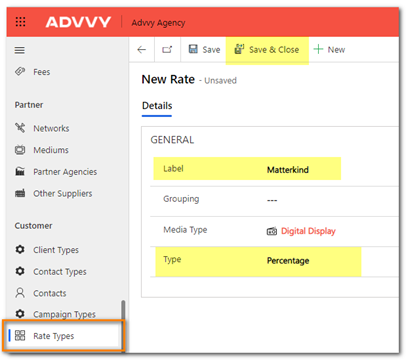
- Navigate to Agency Settings > Customer> Rate Types and click +NEW
Define a rate for the organisation – ie give it a label name, categorise it in a group (optional), set a media type (optional), and define if it’s a currency or percentage [Save and close]
A2. Add Rates to a Client Rate Card
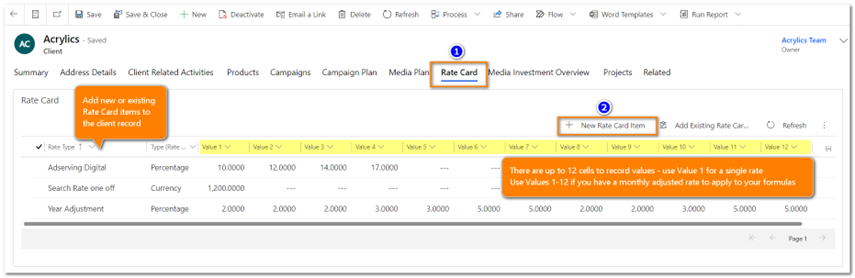
- In Agency, navigate to Clients and select a Client record.
- Select the Rate Card tab
- Select + New Rate Card item to display the Rate Card form
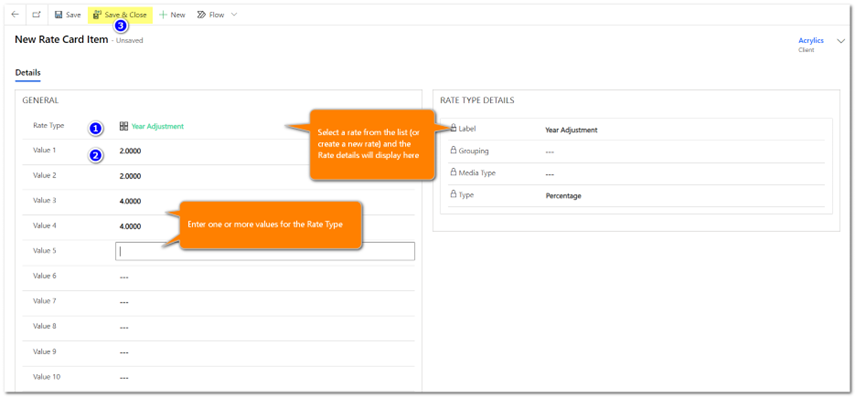
4. Select one of the defined Rate Types (or create a new one here if you have privileges)
5. Enter the rate value in the available fields. There are up to 12 Value fields available per rate. Save and Close.
A3. Advvy Add-in – Download Client Rate card to Excel Media Plan
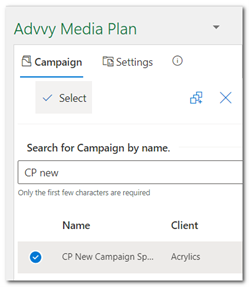
When a new campaign is created for the client in Advvy, and a Media Plan is linked to it via the Advvy-Addin, (Select a campaign to link)…
… a NEW Advvy Reference Tab will be added to the Media plan, and the
Client Rate Data table will be populated with the values from Advvy.
The Advvy Reference Tab and the Client Rate Data Table is controlled by Advvy and the Add-in. This is a dynamic table, so if the Excel Media Plan is connected to a different campaign for a different client, it will delete all the previous client rates and replace them with the new client rate data.
If there a no Rates set for a client, the table will be empty.
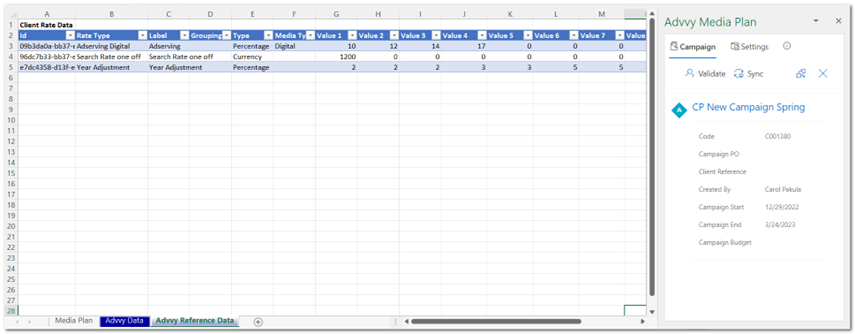
A4. Excel Media Plan: Have formulas that use the Advvy Rate Card table data to pick up the individual rates
For example your media plan can then reference the Client Rate Card table to pick up the value (if it exists)
- Find the First Value for Adserving: =IFERROR(VLOOKUP(“Adserving”,ClientRateData[[Label]:[Value 12]],5,FALSE),””)
Advvy will be sharing more ways to use Rate Cards in our Self Help Guides.
UPDATED Workflow Activity Kanban board – Features
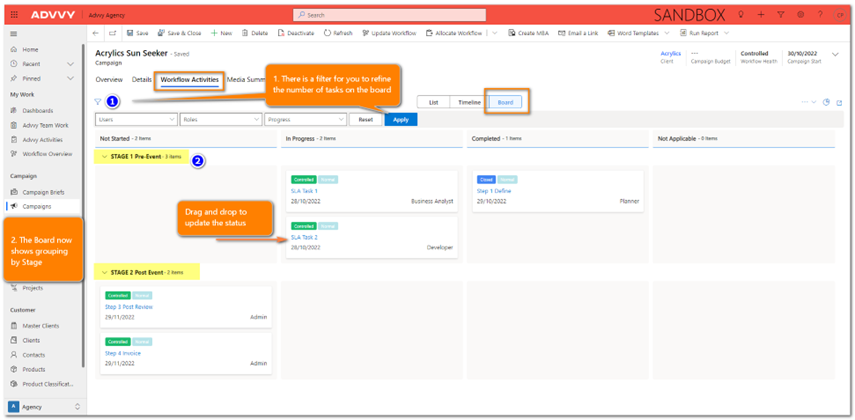
If you’re a fan of the Kanban then you’ll appreciate the subtle changes made to the Kanban Board for a campaign.
There is filtering available to refine the tasks by User, Role or progress
There is stage grouping to make it easier to see tasks within their stage family- these stages can be collapsed for easier viewing.
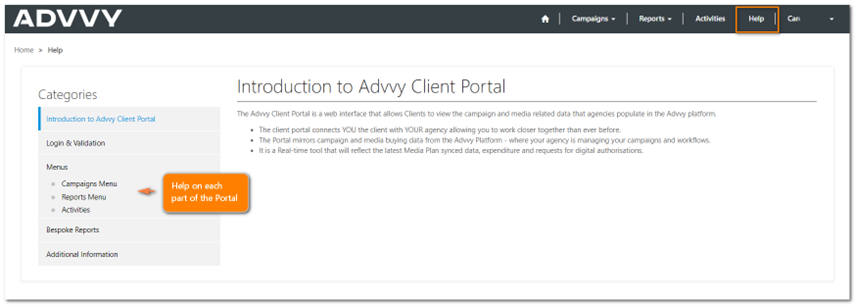
UPDATED Advvy Client Portal Help Guide
The Client Portal has been updated with some general guidelines to assist clients when using portal features.
Release Details
- Enhancements
| Area | ID | Title |
| Campaign | 6749 | Calendar Range Control [PCF] |
| Campaign Activities | 6750 | Kanban Board Update: Advvy Activities/Workflow Activities Controls [PCF] |
| Campaign WF | 4699 | Advvy create and save custom workflow (no definition – save as definition) |
| Client Portal | 6618 | PORTAL: Add Help Guide to client portal |
| Client Portal | 6969 | PORTAL: Campaign Plan [Campaign Details FORM] – show adjustments records and their related dates |
| Config & WF | 6812 | Black out Calendar dates on Weekends so activities are due on working days only |
| Media Planning | 6869 | Extend Campaign Fee Sync logic to include Media Type relationship. |
| Media Planning | 6907 | Add Client Rate Card Sync when connecting Campaign |
| Media Planning | 6909 | Add fee flighting logic to the flighting sync prep logic. |
| Media Planning | 6911 | Add ability to generate Campaign Media Type and Campaign Fee records from Media flights and fee flights after sync |
| Media Planning | 6910 | Add Campaign Fee Flighting to MBA creation process |
| Media Planning | 6912 | Add ability to generate MBA Media Type and MBA Fee records from Media flights and fee flights after MBA Create |
| Media Planning | 6860 | Media Planning – Fees – Add Media Type lookup to Fees |
| Notification Flow | 6675 | Flow: New daily notification flow variant for GRPM – Nestle – Due Tasks for Today and Next 2 Days |
| Views | 6928 | Advvy Activities list control: Add regarding grouping |
| Views | 6930 | Add number of task items on gantt group header for Workflow Tasks and Advvy Activity list controls |
| Workflow | 5559 | Workflow Activities – Save, New and Update |
| Workflow Overview | 6966 | Workflow Overview: After closing stage modal – refresh current page and remember opened workflows |
| Workflow Overview | 6985 | Workflow Overview: Update Order of ribbon buttons |
- Bug Fixes
| Area | ID | Title |
| Workflow | 6041 | Workflow Definition: After saving NEW WF Definition form, type field PCF is not getting locked [FORM] |
| Workflow | 6116 | On changing Due date of workflow activity from Workflow Activities tab in Timeline view ,Due date not get autoupdated in Board view |
| Workflow | 6717 | Workflow Definition: Definition can be set to active when a stage contains no activities |
| Activity | 6101 | Advvy Activity form: Progress status on admin tab is unlocked for blocked activities |
| Activity | 6117 | On removing child activities from a complex activity, in Name column it get updated only after a refresh |
| Activity | 6808 | Stage Due Dates that calculate to the past are cut off at current date |
| Activity | 6939 | Advvy Activity: Task Name default |
| Activity | 6940 | Advvy Activity List control: Add “N/A” due date grouping for tasks that don’t sit in any preset date grouping |
| Activity | 6941 | Activity List Control: Gantt Timeline display – Multiple single task drags causes refresh issues |
*List excludes internal backend Advvy development and bug fixes.