A Campaign is the primary record in Advvy.
It both centralises media plan data and provides a way to better manage the implementation.
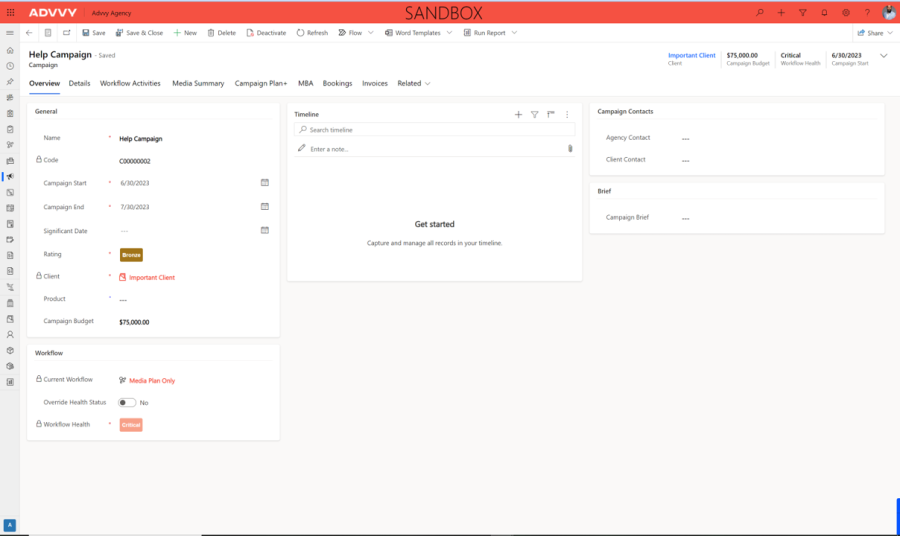
Campaign Record Tabs
Overview
General
This sections defines the campaign record criteria that is displayed throughout Advvy. This information also ties the campaign to a client record (once saved it cannot be changed).
Workflow
Select a pre-defined workflow or create campaign without one
Timeline
The Timeline allows you to capture notes, attachments and updates from managing the campaign. See Timeline for more information
Contacts
Assign both an agency and client contact. These are used for other features like generating an MBA PDF File.
Details
The details tab outlines the status of the campaign and additional campaign and agency details. Furthermore, you can define whether the campaign has a parent, redefining the loaded campaign as a child of the selected parent campaign. See more about Parent/Child Campaigns here.
It is possible to have custom fields specifically for your agency if required. Please contact customer support.
Workflow Activities
The Workflow Activities control allows the user to view a campaign’s workflow instance in its entirety. Through multiple different displays the user can visualise their activities to complete on the campaign via list, timeline or kanban display. Users can easily update activity information on a singular or bulk level and can filter the display to view only a subset of activities. Updating the progress and due dates of activities will additionally update the health of the campaign.
Media Summary
The Media Summary tab displays overall media costs for the campaign that have been calculated from Campaign Flightings, typically created from Media Plan syncs. This is broken down further through a list of media types and their cost contribution to the media totals. Lastly, Campaign Fees are additionally displayed as a list with fee information tied to media types. These are calculated from Campaign Fee Flightings, typically from Media Plan Syncs.
Campaign Plan +
The visualisation for your media plans, generated from Campaign Flightings and Campaign Fee Flightings. See Media Planning section for detailed help on using the Campaign Plan +
MBA
A grid to show all the MBAs that have been created
Bookings
A grid to show all the Bookings that have been created
Invoices
A grid to show all the Invoices that have been created
Related
This enables you to see other menu items that are not automatically displayed. Key Related tabs are:
Campaign Flighting
The underlying lowest level of campaign data that is used to generate all reports and actions other features. These are typically created from an Excel Media Plan sync.
Campaign Fee Flighting
The underlying lowest level of campaign fee data that is used to generate reports and action other features. These are typically created from an Exce Media Plan Sync.
Campaign Import Jobs
Shows all the media plan syncs and the status. If there seems like an issue with the data between the Excel plan and Campaign Plan, see the Import Jobs first to trouble shoot
Audit History
When this item is selected it will display a list of changes performed to the record. Note auditing can be turned on or off by your administrator in advanced settings.