Advvy has the capability to upload existing Excel Media Plans into your campaigns and then provide views across all campaigns. The purpose of syncing media plan data is to enable reporting across all client accounts and give visibility on the media investment across all accounts. By syncing this data, it will save you time and effort as Advvy will automatically produce key reporting from that data.
Media Plan Template Management is a way for teams to use consistent naming conventions when planning. This will produce rich reporting when combined with synced campaign data across all of your client campaigns.
Advvy suggests that your agency work towards having one master media plan template that can be used for all clients. Within Advvy there is a form for an agency to store the URL of the master media plan, so it is easily retrievable by staff. This Template can be stored in a Sharepoint location that can be accessed by all teams.
Media Plans can also be stored against each individual Campaign as a record for compliance.
Storing Master Media Plan Template in Global Advvy Configuration Settings
Ensure the media plan template is stored in a location accessible by all users. Ideally this location should be in a SharePoint location that can be linked to through Advvy and Microsoft Teams.
- Navigate to Agency Settings area and select Configuration Settings
- Click on your Organisation’s Settings link to open the form.
- Locate the “SharePoint Settings”, “Media Plan Template Site” and “Media Plan Template File”
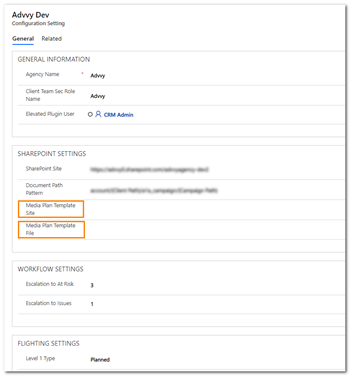
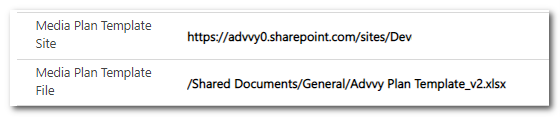
- Enter the Media Plan template SharePoint site URL in the Media Plan Template Site
- Apply the File Name of the media plan template in the Media Plan Template File field.
Adding a Media Plan Template to the Campaign Record
- Create New Campaign
- Open Master Media Template
- Save Template in a new SharePoint Location
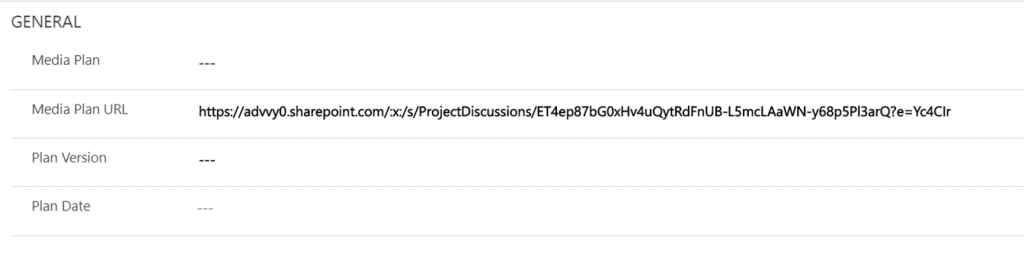
- Add URL of Media Plan to the Media Plan URL location on the Media Plan Tab on the campaign record.
Automating Media Plan Document Generation
Advvy has created a Microsoft Flow that automates the copying of the Media Template and creating a Master Campaign Media Plan for the campaign record. This flow also saves the Media plan in the SharePoint document location behind each campaign record.
- Ensure you have a complete master media plan that is saved in the Master Media Plan Template section.
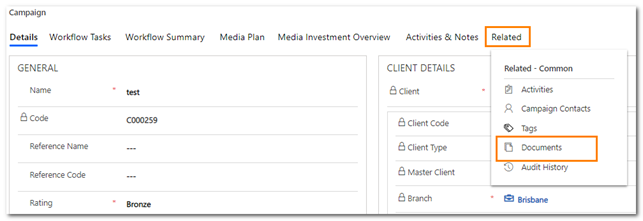
- Once a new campaign is created, click on the ‘Related’ tab and select ‘Documents.
This will display the ‘Documents’ tab and create a unique SharePoint location for this campaign record.
- On the navigation bar click on ‘Flow” and then click on “Generate Media Plan”
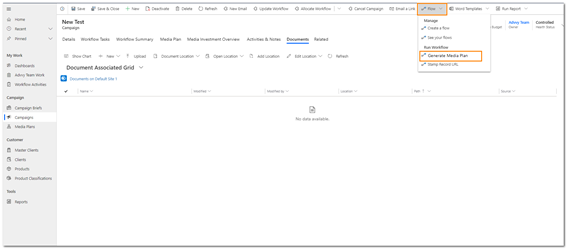
- The Media Plan document will be copied from Master Media Plan template location and saved against the campaign record. The file name will match the campaign name and code.
- Your media planning experience continues as your normally would by completing the relevant planning cells to create your plan, so you may get an MBA signed off by your client.
The major difference in the way you plan is that the file does NOT need to be version controlled by saving it as a new version, as the file is a “live office excel file” stored on SharePoint.
- To start editing your Media Plan simply go to the campaign record and in Documents click on the link to the media plan file. It will open the Media Plan in Excel online.
- If you want to edit using your desktop version of Excel, you can then select to Open in Excel’.
Once you have done this the first time, you won’t need to repeat this process from Advvy.
You can simply launch Excel and Open the Media Plan from the SharePoint Location.
Refer to Media Planning for more details about Media Plans in Excel.